
With the SketchUp Trainer Learning Pass, individuals and teams get professional training and ongoing support to build a consistent SketchUp process, reduce rework, and deliver clean, client-ready outputs.
MEET YOUR TEACHER
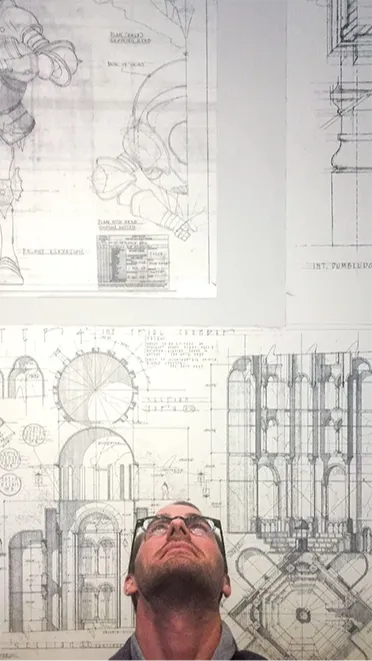
Hi, I'm Dan
I’m the founder of SketchUpTrainer.com
—an educator, designer, and (last but not least) a SketchUp expert.
- 15+ years of experience as a SketchUp trainer & consultant
- 10 years teaching SketchUp at the college level
- Trained thousands of architects, designers, and contractors
Since 2007, I’ve been helping professionals master 3D modeling, streamline their workflows, and bring complex projects to life. My interactive, real-world approach ensures you gain the practical skills needed to design smarter, faster, and with confidence.
"My approach is interactive and project-based—simple and dependable—focused on clean models, reliable workflows, and client-ready visuals.
I put a strong emphasis on foundational skills, because in design and architecture, everything depends on a strong foundation."
Let's connect

There are plenty of SketchUp tutorials out there—but if you’re looking for expert-level training tailored to professionals, you’re in the right place.
Random tutorials can teach you tools. The Learning Pass teaches you a process.
Choose Your Learning Pass
What’s included with the Learning Pass
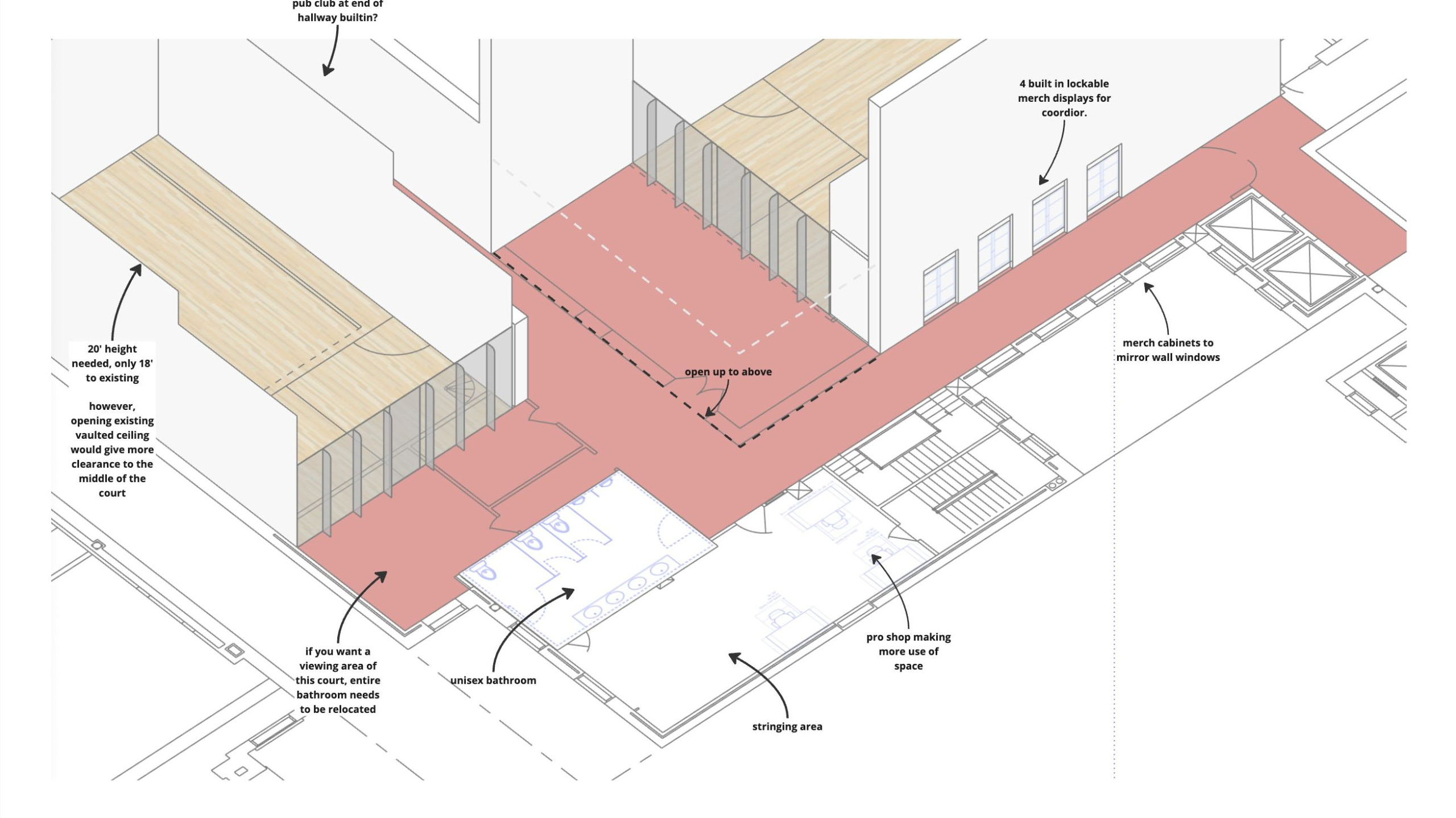
Twice-monthly live help
Project Clinics
Bring a SketchUp, LayOut, or Enscape file (or send it ahead of time).
→ We’ll review it together, make targeted fixes, and leave you with clear next steps to keep your project moving.
Follow the FRAME Workflow
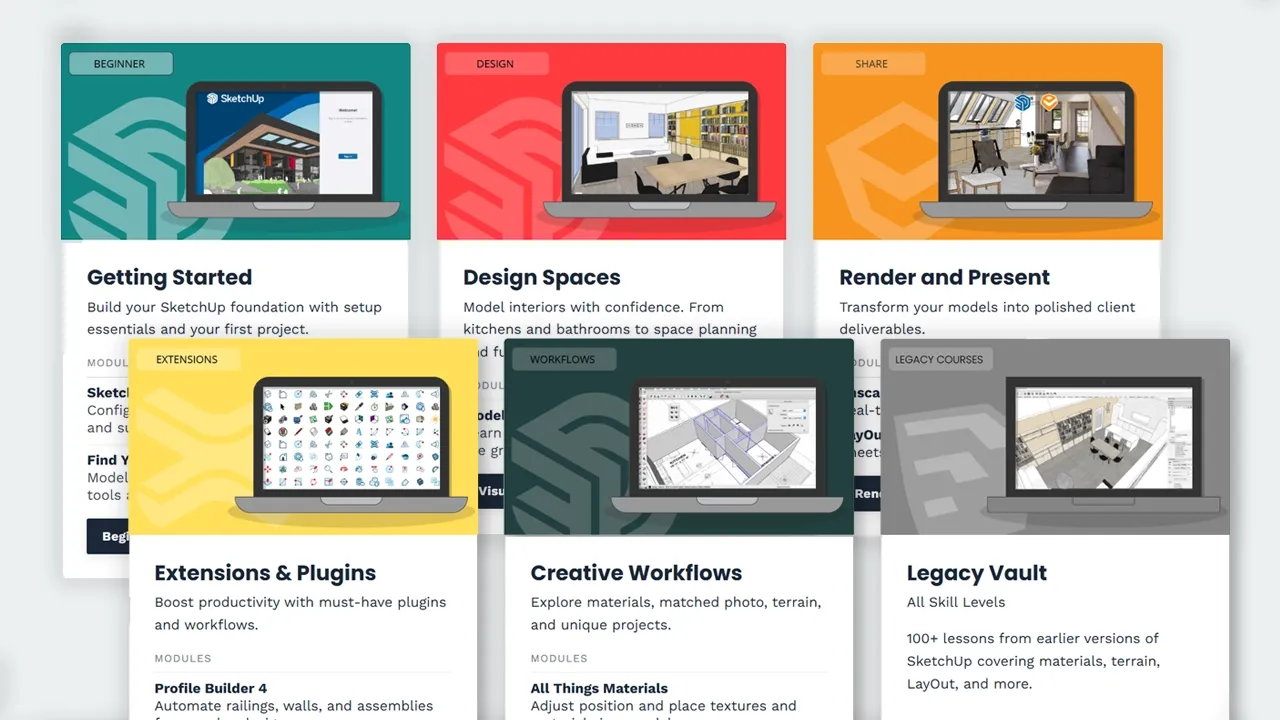
Course Library
Follow structured, project-based courses organized around the FRAME Workflow.
→ Every course is included with your Learning Pass and built around practical, repeatable workflows.
Support as you learn and implement
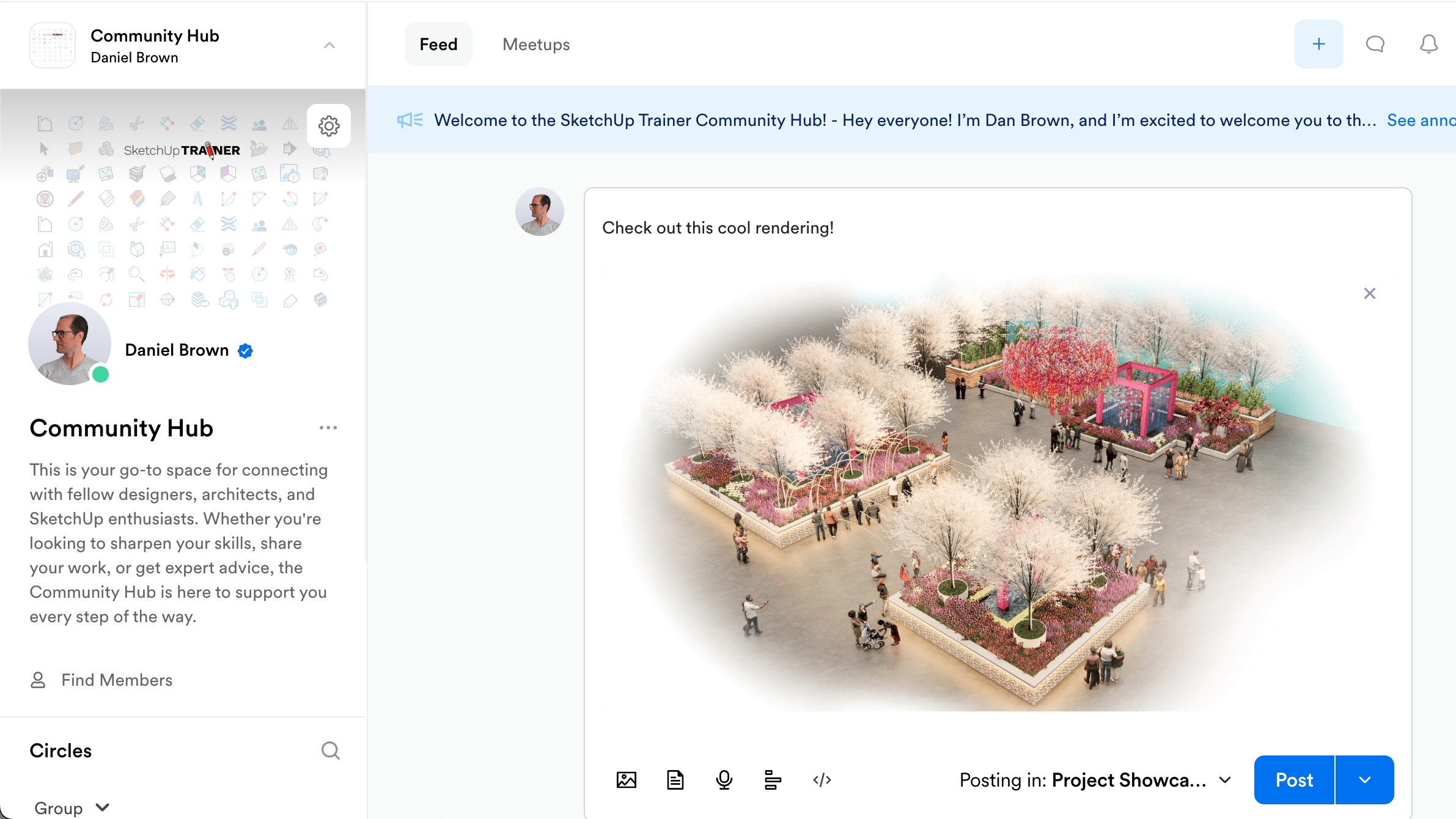
Community Hub
A private space for active Learning Pass users to ask questions, share progress and get feedback.
→ Continue the conversation between Project Clinics.

John Michael Nixa, Owner & President, West Side Lumber
"Daniel was a pleasure to work with. Very knowledgeable and easy to work with. He asks all the right questions and ensures you get what you are looking for from his trainings. I would highly recommend him for anyone looking to learn SketchUp."
FRAME is the step-by-step workflow behind SketchUp Trainer
The FRAME Workflow
Most people are taught SketchUp as a collection of tools. But real projects require a process.
Files change. Clients give feedback. Deadlines matter. Models need to stay organized, editable, and ready to present.
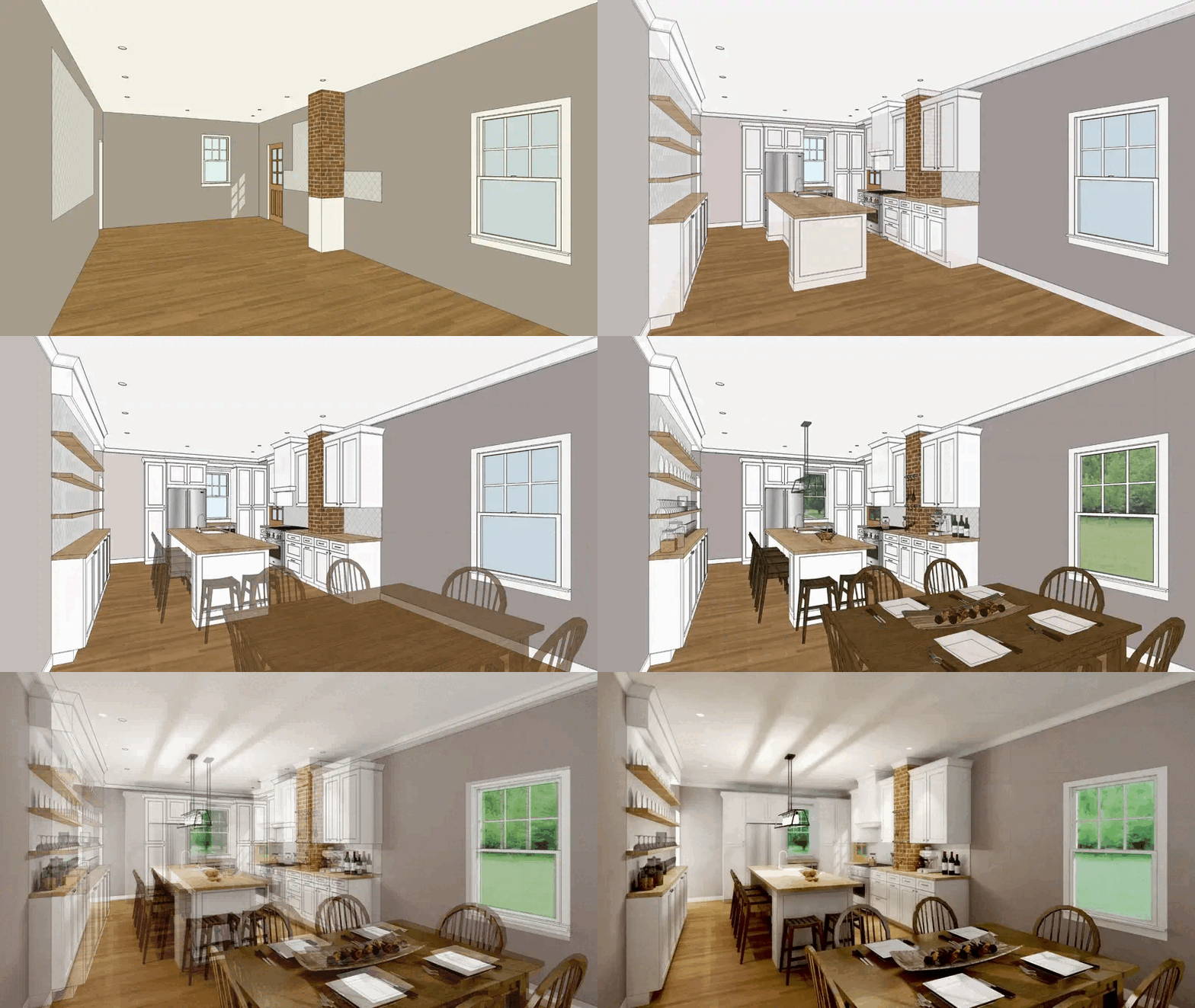
I created the FRAME Workflow after years of training SketchUp professionals and using SketchUp in real project work. It shows you how to move through a project from setup to final deliverables — with clean modeling habits, repeatable systems, organized revisions, presentation-ready views, and client-ready outputs.
As you move through the Course Library, FRAME gives you a clear path to follow.
Start at the beginning, or jump to the step that matches the stage of work you are in now.
Daniel Brown
Creator, FRAME Workflow
Step 1
Foundations
→ Setup Standards
Start every project with a clean workspace and a simple file setup that keeps your models organized and predictable.
Courses Updates coming May 2026
SketchUp Setup Essentials – Templates, Toolbars, and Preferences
Set up your workspace, templates, and core preferences so SketchUp opens ready to work.
Model a Bedroom – Core Tools, Navigation, and Clean Habits
Model a simple bedroom while learning core tools, navigation, and clean modeling habits you’ll use on every project.
Navigation & Selection Deep Dive – Move Confidently in 3D
For people who still fight the camera: focus just on orbit/pan/zoom, selection, and views.
File Setup Basics – Saving, Versions, and Project Folders
Light but important: show where to store files, naming patterns, and simple versioning before projects get big. New course coming!
Step 2
Repeatable Workflows
→ Project Recipes
Build clean, editable models using proven workflows—easy to expand and revise.
Courses Updates coming May 2026
Living Room from Scratch – Groups, Components, and Tags
Build a living room from the ground up using clean structure so the model stays easy to edit.
Bathroom Remodel – Fixtures, Finishes, and Layout
Build a bathroom model with fixtures, tile, and finishes to create a clear, client-ready design.
Build from a Floor Plan – Trace, Scale, and Model Walls
Import and scale a floor plan, then trace and model walls to create an accurate base model.
Clean Up 3D Warehouse Models – Resize, Simplify, and Integrate
Take a 3D Warehouse model, clean it up, resize it, and make it behave properly in your own project.
Terrain & Site Modeling – Working with Sandbox Tools
Use Sandbox Tools to create terrain from contours and drape linework for simple site and landscape models.
Project Template – Start-to-Finish Structure for New Models New course coming!
Step 3
Approval Views
→ Decision Set
Create a consistent set of scenes, sections, and option views so decisions are clear and easy to compare.
Courses
Approval Views in SketchUp – Scenes, Sections, and Styles
Build a consistent set of scenes, section cuts, and styles so options are easy to compare and approve.
Option Sets – Presenting Design Alternatives with Tags and Scenes Coming soon!
Camera & Composition – View Angles That Communicate Clearly Coming soon!
Simple Walkthroughs – Scene Animations for Quick Flythroughs Coming soon!
Step 4
Manage Revisions
→ Update Loop
Apply feedback without rebuilding—keep structure, tags, and scenes stable as changes come in.
Courses
Manage Revisions – Updating the Bathroom Remodel Cleanly
Apply client changes to the bathroom model while keeping groups, components, tags, and scenes stable.
Change Requests in Multi-Room Projects – Keep Views and Tags Stable Coming soon!
Version Strategy – Save Files, Backups, and “Roll-Back” Points Coming soon!
Managing Options Over Time – Phasing and Alternates Coming soon!
Step 5
Export & Deliver
→ Delivery Pack
Create a consistent delivery package—organized, named, and ready to send (often through LayOut).
Courses
LayOut Basics – Sheets, Viewports, and Dimensions
Build a simple LayOut document set with scaled views, dimensions, and a clean PDF export workflow.
Enscape Essentials – Real-Time Rendering from SketchUp
Set up views, lighting, and materials so you can quickly generate consistent, client-ready images directly from your SketchUp models.
Slide Presentation Pack – Plans, Elevations, and Perspectives Coming soon!
Trimble Connect - Share Your Model In Real Time Coming soon!
Exporting for Clients and Teams - Exploring Miro Coming soon!
Extras
Workflow Booster
→ Choose Based on Your Goal
Focused add-ons that plug into the FRAME workflow. Choose the one that matches your next goal.
Courses on Extensions & Plugins
Profile Builder 4 (Best after Step 2)
Automate walls, railings, and assemblies to speed up repetitive modeling.
Artisan 2 (Best after Step 2)
Model organic forms like terrain, curved walls, and sculpted details with more control.
Bevel Tool (Best after Step 2)
Add clean edge details for furniture and architectural elements.
Skimp 2 (Best after Step 2)
Lighten heavy models and import common formats (GLB, USDz, FBX, OBJ) more smoothly.
SketchPlus (Best after Step 2)
Speed up everyday modeling with tools like Draw Wall and Align for clean layouts.
Workflow Tips & Tricks (Best after Step 2–5)
Time-saving methods for roof details, live components, and faster interior edits.
Extras
Bonus Library
→ Choose Based on Your Goal
Recorded in earlier versions of SketchUp. Workflows still apply today.
Course Legacy Vault (All Skill Levels)
A deep archive of lessons on materials, terrain, LayOut, and more that you can dip into alongside the FRAME steps.
SketchUp Trainer Learning Pass + Course Library FAQs
What’s included with the Learning Pass?
Full access to the Course Library, plus ongoing support through twice-monthly Project Clinics and the Community Hub.
Who is the Learning Pass for?
Working design professionals and serious learners who use SketchUp — interior designers, architects, landscape designers, contractors, educators, students, and advanced hobbyists who want production-grade workflows.
Is the Learning Pass right for me if I’m brand new to SketchUp?
Yes. Start with SketchUp Setup Essentials, then Step 1 of the FRAME Workflow (Foundation). You can move through the steps over time, and use Project Clinics + the Community Hub for support as you learn.
Where should I start?
Start with SketchUp Setup Essentials, then begin Step 1 in the FRAME Workflow (Foundation).
Can I jump to the step I need most?
Yes. If you’re in the middle of a project, you can jump to the step that matches your next goal (Approval Views, Manage Revisions, Export & Deliver, etc.) and follow the workflow from there.
Do these workflows apply to my projects?
Yes. FRAME is built around deliverables and workflows that translate across interiors, woodworking, construction, architecture, landscape, and more.
What are Project Clinics?
Small-group live support sessions where you bring questions from your real project and get help applying the workflow (including working through issues live when helpful).
What if I can’t attend Project Clinics live?
Join live when you can. If you can’t, replays are available with the Learning Pass so you can watch later and apply the takeaways.
What is the Community Hub?
A private space to ask questions, share progress, and get feedback between Project Clinics.
Is this live or self-paced?
The Course Library is self-paced. Live support happens in Project Clinics, and ongoing Q&A/feedback happens in the Community Hub.
Do I get access to future courses?
Yes. With active Monthly Access or Annual Access, you get every new course and all future updates at no additional cost.
Can I switch from Monthly Access to Annual Access?
Yes. You can switch at any time. Annual Access starts when you switch, so you can keep learning without interruption.
Can I share my access with my team?
Access is intended for individual use and login sharing isn’t supported. If you’d like access or training for multiple people, reach out and we can discuss firm-wide options or private group training.
What if I need extra support?
Monthly Access and Annual Access include the Community Hub and Project Clinics. If you want deeper, tailored help, you can also book 1-on-1 private training.
How are Project Clinics different from private training?
Project Clinics are included small-group working sessions focused on helping you apply the workflows. Private training is 1:1 (or team-based), fully tailored to your standards and projects, and can go deeper.
What happens if I cancel Monthly Access?
You’ll keep access to the Course Library, Project Clinics, and the Community Hub until the end of your current billing period. After that, your access won’t renew and you won’t be charged again.
How long do the courses take?
Each course is designed to be focused and outcome-based, with a clear deliverable at the end. Course descriptions include what you’ll produce so you can choose what fits your time and current project.
What do I need to take these courses?
A computer running SketchUp and an internet connection to access the library. For the best experience, SketchUp Pro (desktop) is recommended, plus a 3-button scroll-wheel mouse. Some workflows use LayOut and Enscape; when those are required, it will be clearly noted in the course description.
